
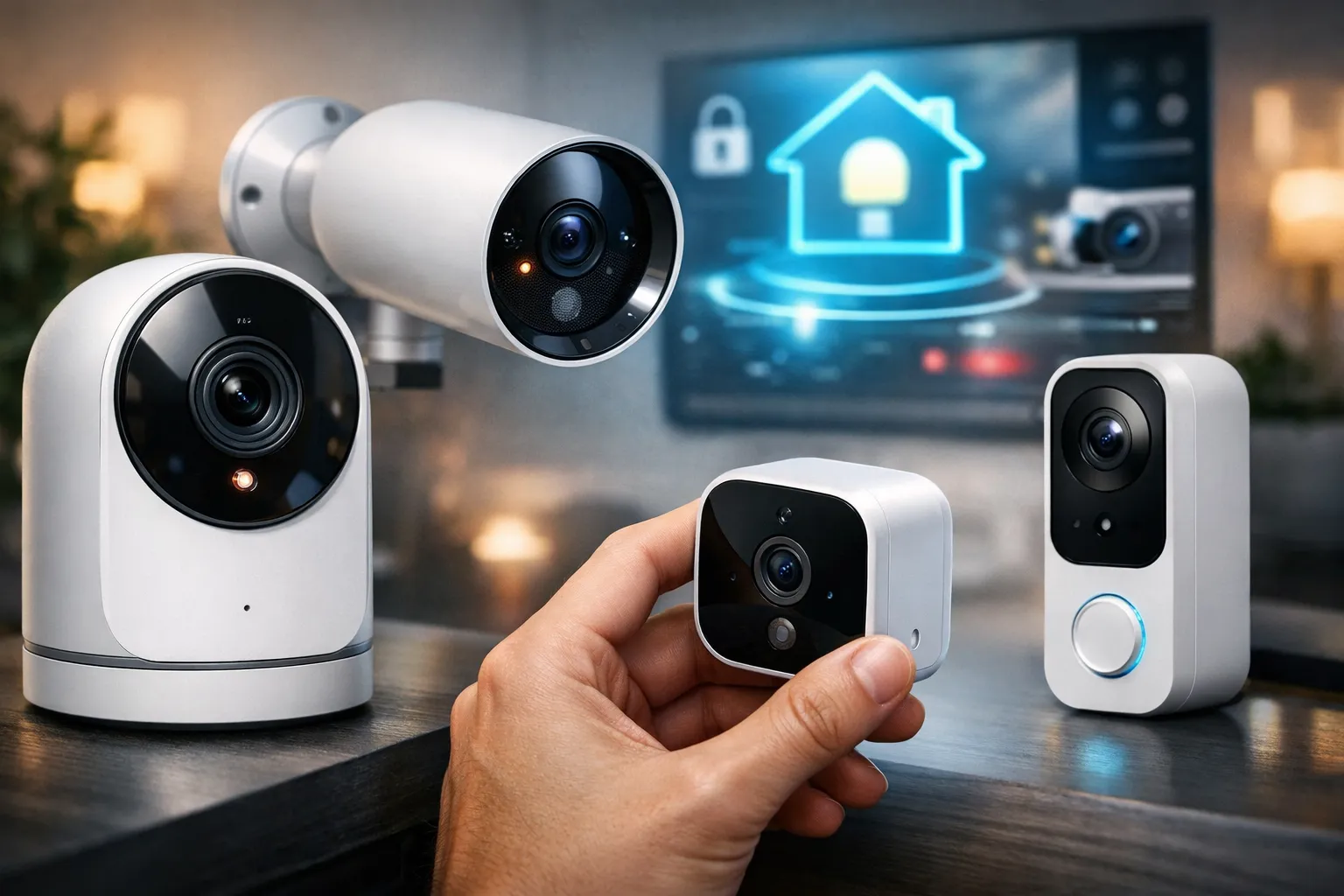
If privacy and tighter Apple automations matter, pick HomeKit security cameras that support HomeKit Secure Video. Secure Video analyzes footage locally, stores clips with end-to-end encryption, and adds person, pet and vehicle detection plus facial-recognition hooks for Home app automations. It requires an iCloud+ plan and an always-on HomeKit hub, such as Apple TV, HomePod or an iPad, but that setup yields smarter automations and stronger privacy than most vendor clouds. For HomeKit users, Secure Video’s privacy and automation benefits are often worth the added setup and subscription.
Quick summary
- Prioritize Secure Video: HomeKit Secure Video runs analysis on-device and uses end-to-end encryption; choose it for stronger privacy and smarter automations.
- Match iCloud+ tier: Pick an iCloud+ plan that covers your camera count (50 GB = 1 camera, 200 GB = up to 5, 2 TB = unlimited) to avoid running out of recording slots.
- Buy by use case: Porches need wide FOV and weatherproofing; nurseries need low latency and clear two-way audio; dim rooms benefit from larger sensors and true HDR.
- Network and hub matter: confirm reliable Wi‑Fi and an always-on HomeKit hub (Apple TV, HomePod or iPad) and place cameras for signal and coverage.
- Plan fallback routes: if you skip cloud or want hybrid storage, use RTSP/Homebridge/Scrypted or hubs like the Aqara G3 to enable local or stream-only setups.
HomeKit security cameras: quick buying rules
- Resolution: 1080p minimum; 2K+ for reliable identification at distance.
- Field of view: 120°+ for porches; 90–110° for focused rooms.
- Low-light/HDR: larger sensor or true IR for night clarity.
- Motion sensor: PIR or radar reduces false alarms versus pixel-change detection.
- Power/mounting: wired for reliability; batteries for flexible outdoor spots.
Storage is the main friction point: iCloud+ encrypted clips versus vendor local storage options. Many cameras won’t record to SD or a NAS while HKSV is active, so hybrid approaches such as the Aqara Camera Hub G3 or Scrypted/Homebridge with RTSP let you keep HomeKit live view while recording locally. Choose Secure Video if Apple-grade privacy and automations matter; pick a local-only setup only when you reject cloud recording entirely.
Top HomeKit security cameras by use case
Best HomeKit indoor cameras
A few indoor HomeKit cameras balance video quality, privacy and smooth Home app integration. Logitech Circle View, ecobee SmartCamera and the eufy Indoor Cam E220 (Solo P24) each bring different strengths. We note where each model fits best so you can pick the right camera for a living room, nursery or office. For a broader roundup of options and comparisons, see this list of the best HomeKit cameras.
- Logitech Circle View
- Resolution: 1080p with a wide 180° field of view.
- Standout: hardware privacy shutter and robust HomeKit Secure Video support.
- Best for living rooms and entryways where wide coverage matters; vendor app features are minimal but Home app integration is solid.
- ecobee SmartCamera
- Resolution: 1080p with effective HDR.
- Standout: presence-based automations when paired with ecobee thermostats.
- Best for nurseries and spaces where thermostat-linked presence helps, though occasional app lag has been reported.
- eufy Indoor Cam E220 / Solo P24
- Resolution: 2K options, with pan/tilt on some models.
- Standout: strong value and local recording options.
- Best for home offices or nurseries; some HomeKit features require initial vendor-app setup.
Best HomeKit outdoor and battery cameras
Pick outdoor HomeKit security cameras based on weatherproofing, battery life and their ability to avoid false alerts. For premium 4K with radar look at the eufyCam S3 Pro; budget battery options include the eufyCam 2C, while wired porch installs often use the Logitech Circle View. The Aqara G5 Pro performs well in low light but expect tradeoffs around hubs and feature support.
- Some eufy models require a HomeBase for advanced features.
- Battery cameras demand periodic recharging or battery swaps; solar accessories can reduce maintenance but add cost and placement planning.
- Wired models need installation planning but usually require less ongoing maintenance.
Best no-subscription or hybrid setups
Hybrid setups let you avoid vendor cloud storage while keeping live HomeKit access. Options include the Aqara Camera Hub G3 with local microSD backups or using Scrypted or an RTSP bridge to record streams to a NAS. Those options preserve live HomeKit access while keeping footage on-prem, but expect feature tradeoffs and more technical setup work.
FAQ
Q: Can I use HomeKit Secure Video without iCloud+? HomeKit Secure Video needs an iCloud+ plan to store encrypted recordings and get the 10-day event history. Live feeds remain available in the Home app without iCloud+, but person, pet and vehicle event history and encrypted clip storage require a paid iCloud+ tier and an always-on HomeKit hub.
Q: Can I avoid vendor cloud entirely? You can minimize vendor cloud use by choosing cameras that offer local microSD storage or by running RTSP with Scrypted or Homebridge to record to a NAS. Those options preserve live HomeKit access while keeping footage on-prem, but expect feature tradeoffs and more technical setup work.
Q: Do battery cameras need more maintenance? Battery models cut wiring work but require periodic recharging or battery swaps and more frequent connectivity checks. Adding a solar accessory reduces maintenance but increases cost and placement planning.
How HomeKit Secure Video and iCloud+ recording work
Quick summary: iCloud+ camera limits depend on the tier you choose, with higher tiers supporting more cameras. HomeKit Secure Video keeps motion-triggered clips for 10 days and stores them in iCloud; those HKSV clips typically do not count against your personal iCloud storage quota. Check Settings > your Apple ID > iCloud for the exact camera limits on your account before you buy; Apple documents those camera and recording rules in its iCloud HomeKit Secure Video support article.
Home hubs include Apple TV 4K, HomePod or HomePod mini, or an iPad that stays at home and remains available in the Home app. Keep those devices and your cameras on current OS and firmware releases since updates often improve local analysis, object labeling and stability. Also keep the hub on the same Wi‑Fi network as your cameras to avoid dropped processing and missed detections. For a thorough explainer of how HKSV works and its limitations, see this HomeKit Secure Video guide.
HomeKit Secure Video records events rather than streaming 24/7 to the cloud. Local analysis classifies people, pets, vehicles and packages before clips are encrypted and uploaded to iCloud. That means HKSV does not offer native continuous 24/7 cloud recording, and some vendor cloud features may be limited once a camera joins HomeKit.
Camera counts and retention rules come from Apple, so verify your iCloud+ tier in Settings before buying HomeKit security cameras. If you need continuous recording, plan for a vendor cloud or a local-recording bridge.
Privacy and encryption: HomeKit vs vendor clouds
Quick overview: HomeKit emphasizes privacy by using end-to-end encryption and on-device analysis so footage leaves your home only when encrypted. Vendor clouds can offer continuous recording, extra cloud features or lower-priced always-on plans in exchange for more data leaving your home. Decide whether you prefer stricter privacy and tight Home app integration or additional cloud-driven features when choosing HomeKit security cameras.
HomeKit Secure Video encrypts clips end to end and runs analysis locally when possible, so less raw data leaves your home. Encryption keys stay on your Apple devices and home hub, meaning clips are not readable by Apple in plain form. That design gives you control over sharing and Home app permissions while keeping convenient cross-device access.
Vendor cloud approaches vary. Some brands use a local-first model with optional cloud tiers so you can keep local backups, while others rely on vendor cloud processing for features like continuous recording and extra AI. Review each vendor’s privacy policy and firmware history before buying, since cloud practices and transparency differ across manufacturers.
Choose HomeKit when privacy and tight Apple automation are priorities, and choose a vendor cloud if you need 24/7 recording, lower-cost always-on plans or features HKSV lacks.
How the HomeKit Hub tests and recommends cameras
Quick summary: We evaluate every camera with repeatable, weighted tests so recommendations reflect real-world performance for HomeKit security cameras, not just headline specs. Our scoring emphasizes long-term reliability and automation compatibility rather than raw megapixels. A camera that keeps automations running matters more than a high-resolution model that drops connections after a few weeks. For hub basics and setup notes see Hello world! – The Homekit Hub.
Our test checklist and scoring metrics. Each model goes through the same checklist so scores are comparable across cameras. We measure Secure Video compatibility, detection accuracy and false positive rate, low-light image quality, two-way audio clarity, firmware stability and integration quirks. The list below shows the core metrics we measure in both lab and home tests.
- Detection accuracy and false positives: how reliably motion maps to meaningful events
- Low-light and color fidelity: real scenes, not lab charts
- Audio clarity and bi-directional latency
- Firmware stability and long-term reliability
We weight stability and long-term reliability higher than flashy specs. A camera that drops automations or needs constant resets is worse than a slightly lower-resolution model that simply works. We update scores after major firmware releases or when field reports show meaningful changes.
Lab runs and real-home field tests reveal where specs and lived experience diverge. Lab benchmarks set theoretical ceilings while homes expose flaky Wi‑Fi, pets and sun glare that affect detection and uploads. For example, the eufyCam S3 Pro did very well in low light but needed HomeBase tuning on busy networks, while the Aqara G5 Pro showed the best night color but had occasional Wi‑Fi retries that increased false positives.
How to interpret our ratings. A high score means the camera integrates cleanly with HomeKit automations and remains reliable through firmware updates, not just that it records sharp video. We retest and update scores after major firmware releases or when field reports show meaningful changes, and publish revisions so our recommendations stay useful. If a camera’s behavior changes substantially we note that in the review and adjust its score accordingly.
Buy, set up, and troubleshoot: quick checklist and deals
Quick checklist: Before buying HomeKit security cameras confirm HomeKit Secure Video support, choose an iCloud+ tier that covers your camera count and ensure you have an always-on HomeKit hub. Test Wi‑Fi where you plan to mount the camera, because poor signal renders even good sensors useless. Get the network stable before you worry about extras like HDR or motion sensors.
- Compatibility: HKSV listed in specs
- Hub & iCloud+: Apple TV/HomePod/iPad plus the correct iCloud+ tier
- Power: wired vs battery and mounting kit
- Network: target 2–3 bars at camera location or use wired backhaul
- Update camera firmware and the Home app to current versions.
- Set up the camera in the vendor app if required, then enable HomeKit and scan the code.
- In the Home app enable Secure Video recording and define activity zones.
- Verify recordings and notifications, and adjust zones to reduce false positives.
Common problems include cameras not appearing in the Home app, HKSV failing to record, local SD recording being disabled, and excessive false alerts. The quick fixes below address these issues. If you want local backups, plan to use Scrypted or a NAS with an RTSP bridge for on‑prem storage.
- Camera not in Home app: check hub OS, reboot hub and camera, then re-scan the HomeKit code.
- HKSV not recording: confirm iCloud+ camera slots and hub connectivity.
- Local SD saves disabled: many HKSV setups disable vendor local recording; use Scrypted or an RTSP bridge for backups.
- False positives: tighten activity zones or lower PIR sensitivity.
- Logitech Circle View (approx. $179)
- eufyCam S3 Pro (approx. $399)
- Eve Outdoor Cam (approx. $249)
- Aqara G2H Pro (approx. $99)
- Apple TV 4K (approx. $129)
- HomePod mini (approx. $99)
- eufy HomeBase 2 (approx. $179)
Affiliate disclosure: we may earn a commission if you buy through links at no extra cost to you. If you want the simplest path to privacy and Apple integration, pick a proven HomeKit Secure Video camera that fits your hub and iCloud+ slots. For budget outdoor coverage consider the eufy line; for plug‑and‑play indoor use choose Logitech Circle View or Eve. Match the model to your hub and plan, then follow the checklist above to set it up and test it in your home.
Final thoughts on HomeKit security cameras
Choosing HomeKit security cameras comes down to three priorities: privacy, reliable integration and real-world performance. Our lab and field testing favors stability and long-term behavior over raw specs, so recommendations prioritize models that keep automations working. Prioritize HomeKit Secure Video plus the correct iCloud+ plan for on-device analysis and encrypted clips if privacy matters to you.
Keep your setup simple and test it as you live with it: check notifications, confirm recording behavior and watch for false alerts. Pick cameras that match your automations and network, and avoid devices that need constant fiddling unless you plan to run bridges or third-party software. Next steps: confirm you have iCloud+ and an always-on HomeKit hub, choose a camera from this list and run a 48-hour live test; follow our setup and troubleshooting guides if anything goes wrong. Also see our Sample Page – The Homekit Hub for more resources.
Leave a Reply