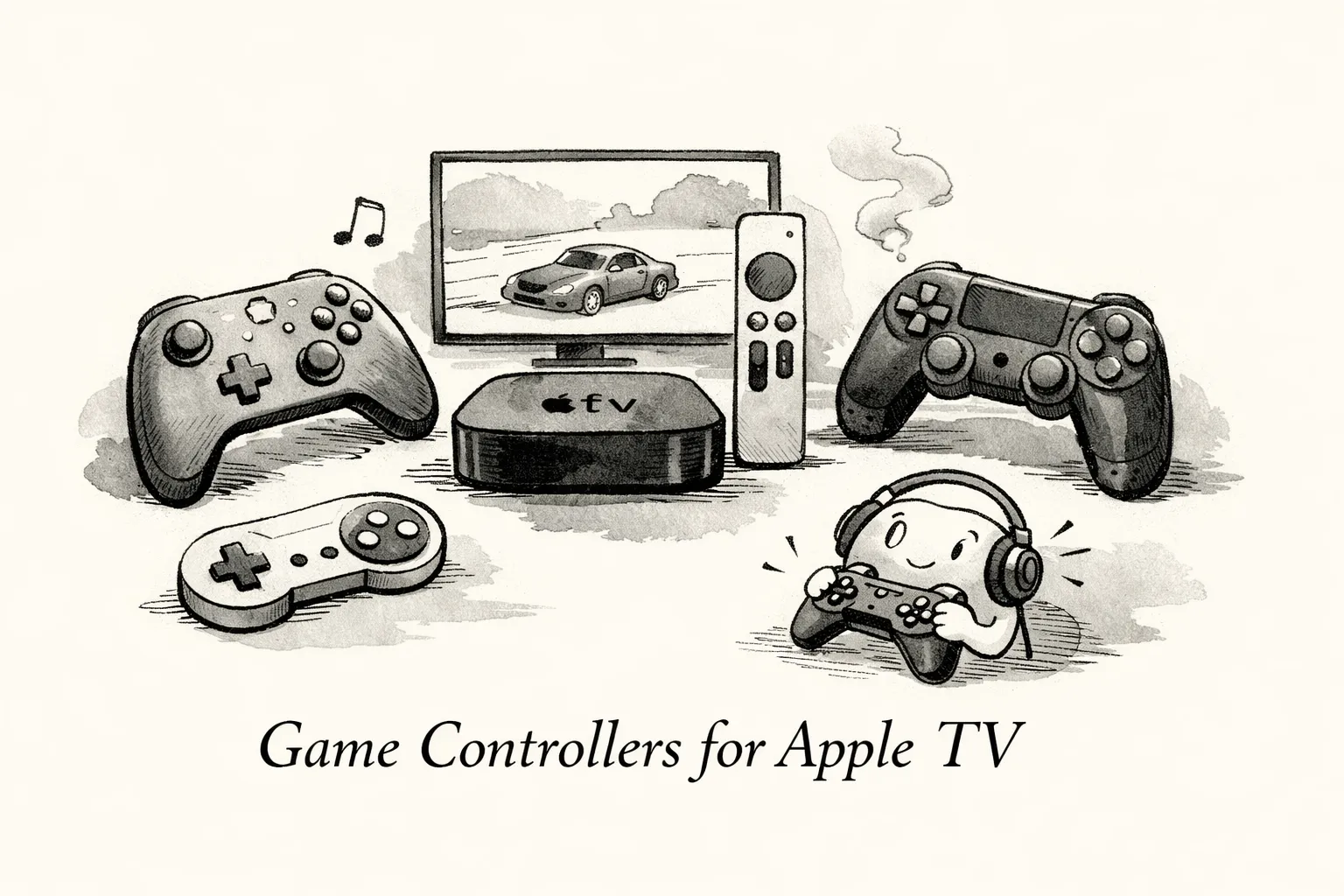
The right controller turns a quick couch session into a proper living-room gaming night. If you’re shopping for the best game controllers to play on Apple TV, this guide cuts through marketing fluff so you buy the right pad.
Quick takeaways
- Top picks: DualSense is the comfort king for long sessions, while the Xbox Wireless Controller leads on battery life and couch‑co‑op reliability. Both make sense depending on whether you favor feel or endurance during multiplayer nights.
- Latency and pairing: 8BitDo and Gamesir models recorded the lowest Bluetooth latency in our tests. Always pair via Settings > Remotes and Devices > Bluetooth on Apple TV, then run a 10‑minute fast‑action test to confirm responsiveness and mapping.
- tvOS quirks: console extras such as adaptive triggers and advanced haptics are not consistently available on Apple TV. Prioritize solid button feel and reliable inputs over headline features when you choose a pad.
- Battery and long sessions: choose a controller with long runtime or plan a wired fallback. Premium pads like DualSense offer great ergonomics but can drain faster when haptics are active, so factor recharge routines into marathon play.
- Interference test: run controller checks with HomeKit automations active because real‑world Wi‑Fi and smart‑home traffic can reveal input drops. If you spot instability, relocate an access point or pause automations during play to see if performance improves.
How the HomeKit Hub tests controllers in real-world entertainment and smart home setups
We run tests on a living-room bench designed to match typical setups: Apple TV 4K running tvOS 16-18, a reference display with Game Mode enabled, and both wired Ethernet and 5 GHz Wi‑Fi. Tests use common couch‑to‑TV distances, two to four meters, so Bluetooth range and line of sight matter. We record tvOS build numbers, controller firmware, and TV firmware because those variables change behavior more often than you expect.
We balance objective measurements with hands‑on scoring. Ergonomics receives a 1–5 score based on grip comfort, button layout, weight, and trigger feel. Latency is measured with a high‑speed camera and a latency app to produce frame‑accurate values in milliseconds.
Battery drain is recorded during fixed two‑hour play sessions and reported as percentage lost per hour. Stability tests include multi‑controller pairing, reconnection reliability, and interference scans for Bluetooth noise and crowded Wi‑Fi channels. We also rerun key tests with HomeKit automations active to observe real‑world impacts.
Quick pairing cheat sheet: open Settings, then Remotes and Devices, then Bluetooth on Apple TV, put the controller in pairing mode, and select it from the list. Doing this first avoids accidental connections with nearby phones or headsets. For a step‑by‑step official reference, see the Apple Support guide to using a game controller on Apple TV (Apple Support).
Common entry combos we use are: for DualSense, hold PS and Create until the light pulses; for Xbox, hold the pair button on top until the Xbox button blinks; for 8BitDo, switch to D‑Input mode or hold Start and X then press the pair button; for Nimbus and Gamesir, press the controller’s pairing or power button or use Home and X on models that require it. These commands cover the main Apple TV gamepad families and speed testing across models.
When pairing fails, try simple fixes first: restart Apple TV, forget the controller and re‑pair, move the controller within inches of the Apple TV, and disable other Bluetooth audio devices. We also run interference scans to identify whether smart‑home radios are the culprit; relocating an access point or pausing nearby automations often restores stability during play. For additional pairing tips—especially for PS5 and Xbox Series X pads with Apple devices—see this MacRumors how‑to on pairing console controllers with iPhone and Apple TV (pairing guide).
Sony DualSense (PS5): premium ergonomics, limited extras on tvOS
DualSense is notably comfortable, with rounded grips, balanced weight, and a slightly larger footprint that reduces fatigue during long sessions. Trigger shape and stick spacing follow modern console ergonomics, and button travel feels tactile without being mushy. That makes it well‑suited for marathon single‑player RPGs and precision platformers.
Pair DualSense on Apple TV via Settings > Remotes and Devices > Bluetooth: hold PS and Create until the light pulses, then select “Wireless Controller.” tvOS recognizes inputs and supports remapping and custom control profiles, but adaptive triggers and full haptic feedback are usually unavailable. Check controller firmware if haptics behave oddly and verify compatibility after system updates.
Sony rates battery life long, but our real‑world numbers range from roughly six to twelve hours depending on haptic and LED use. Bluetooth latency is low for most single‑player titles, though competitive shooters may benefit from lower‑latency pads. If pairing fails, unpair old entries, restart Apple TV, reset the controller using its small reset pinhole, or update firmware via PS5 or PC. Choose DualSense if ergonomics and stick feel are your priorities, and accept that some PlayStation‑specific features won’t work on Apple TV. Recent reporting on DualSense battery life trends can help set expectations for long play sessions (DualSense battery life reports).
Xbox Wireless Controller: the battery life and couch‑coop champion
Xbox Wireless Controller is roomy and comfortable for large hands, making it ideal for couch‑co‑op sessions. Grips are roomy, button spacing is wide, and bumpers are chunky, reducing thumb fatigue during long matches. Elite variants add paddles and customization for hobbyists.
Pairing is straightforward: turn it on with the Xbox button, press the small connect button until the Xbox button blinks, then add it in Settings > Remotes and Devices > Bluetooth on Apple TV. Latency is usually low, but adding two or more Bluetooth pads can introduce slight lag depending on interference. Battery flexibility is a major advantage: the controller runs on AA cells or an official rechargeable pack, with runtimes up to around 40 hours depending on use.
If you see pairing conflicts, unpair extras in Apple TV settings, power cycle the devices, and keep Bluetooth audio off during pairing. Update controller firmware via the Xbox Accessories app on PC or Xbox to fix quirks. The Xbox Wireless Controller is our pick for longevity and reliable couch‑co‑op on Apple TV.
8BitDo Ultimate: low latency and extreme remapping for cross‑platform players
The 8BitDo Ultimate blends classic ergonomic cues with PC‑level customization. It has rounded grips, textured triggers, and a slightly slimmer profile than DualSense, which suits medium and small hands. Extra rear buttons and modular mapping let you reassign bumpers or create macro sequences without external hardware.
Connection flexibility is a strong point: switch the pad to D‑Input mode, enter pairing mode, and select it from Apple TV’s Bluetooth menu. The Ultimate also ships with a 2.4 GHz USB dongle that lowers lag on PCs or Switch, but Apple TV only accepts Bluetooth controllers, so the dongle’s benefits do not apply on tvOS. Still, Bluetooth latency on the Ultimate was among the lowest we measured. For official compatibility info and downloads, see 8BitDo’s Apple compatibility page (8BitDo Apple page).
Battery life typically runs 20‑plus hours depending on use, and the remapping app lets you store multiple profiles and tweak dead zones per game. That makes 8BitDo Ultimate an excellent single‑controller solution if you use multiple platforms. Choose it when cross‑platform flexibility matters more than native Apple features.
SteelSeries Nimbus+: the Apple‑native, plug‑and‑play pick
The SteelSeries Nimbus+ is built for Apple users, with thumbstick spacing and controls that mirror many mobile‑first layouts. The controller feels familiar when you switch from touch to physical controls, and the optional detachable phone clip makes mobile play easier. Button placement and triggers match expectations for tvOS navigation.
Pairing is reliable: put Nimbus+ into Bluetooth pairing mode and select it from Settings > Remotes and Devices > Bluetooth on Apple TV. As an MFi controller, tvOS recognizes Nimbus+ quickly and supports Home screen navigation and menu shortcuts without workarounds. Motion and advanced haptics are still unsupported on Apple TV.
SteelSeries advertises up to 50 hours of battery life, though real numbers vary with session length and wireless conditions. For low‑fuss plug‑and‑play performance on Apple TV, Nimbus+ remains the most straightforward choice. Choose it if you want a controller that just works on tvOS without extra setup.
Gamesir T4 Cyclone Pro: budget low‑latency contender
The Gamesir T4 Cyclone Pro delivers surprising ergonomics for a budget pad, with comfortable grips and sensible button spacing that hold up through long sessions. It trims premium materials to hit a lower price, but some variants include hall‑effect triggers for crisper analog input and longer life. For many players, that combination offers excellent value.
Connectivity is a highlight when you can use a dongle: many bundles include a 2.4 GHz USB dongle that cuts input lag dramatically compared with Bluetooth. If you want to use the dongle on other devices, plug it into a powered USB hub or a router with USB and follow the manual’s pairing sequence.
Battery life is roughly 15–20 hours in our tests, which covers multiple play sessions before a recharge. Recent batches show low stick drift and tight button response for the price. If you want low latency on a budget and plan to use the pad across multiple hosts, the Cyclone Pro is a sensible pick.
Follow The HomeKit Hub’s short setup checklist to minimize interference and maximize play time. For deeper network setup see our full guides: short setup checklist and deeper guides. Also see our site pages for additional context: Hello world! – The Homekit Hub and Sample Page – The Homekit Hub.
Choosing the best game controllers to play on Apple TV
The HomeKit Hub’s living‑room tests show there is no single best controller for everyone. DualSense wins for comfort; Xbox Wireless Controller takes the lead for battery life and swappable cells; 8BitDo and Gamesir score well for latency and customization; Nimbus+ delivers the most straightforward Apple‑first experience. Because tvOS often doesn’t expose console‑specific features, prioritize core inputs, ergonomics, and stable Bluetooth connections when you buy.
To test a controller, play a 10‑minute Apple Arcade or fast‑action title to check latency, ergonomics, and button mapping. Pick the controller that matches your priorities, test it on your couch, and consult The HomeKit Hub’s long‑term reviews to fine‑tune your setup.