
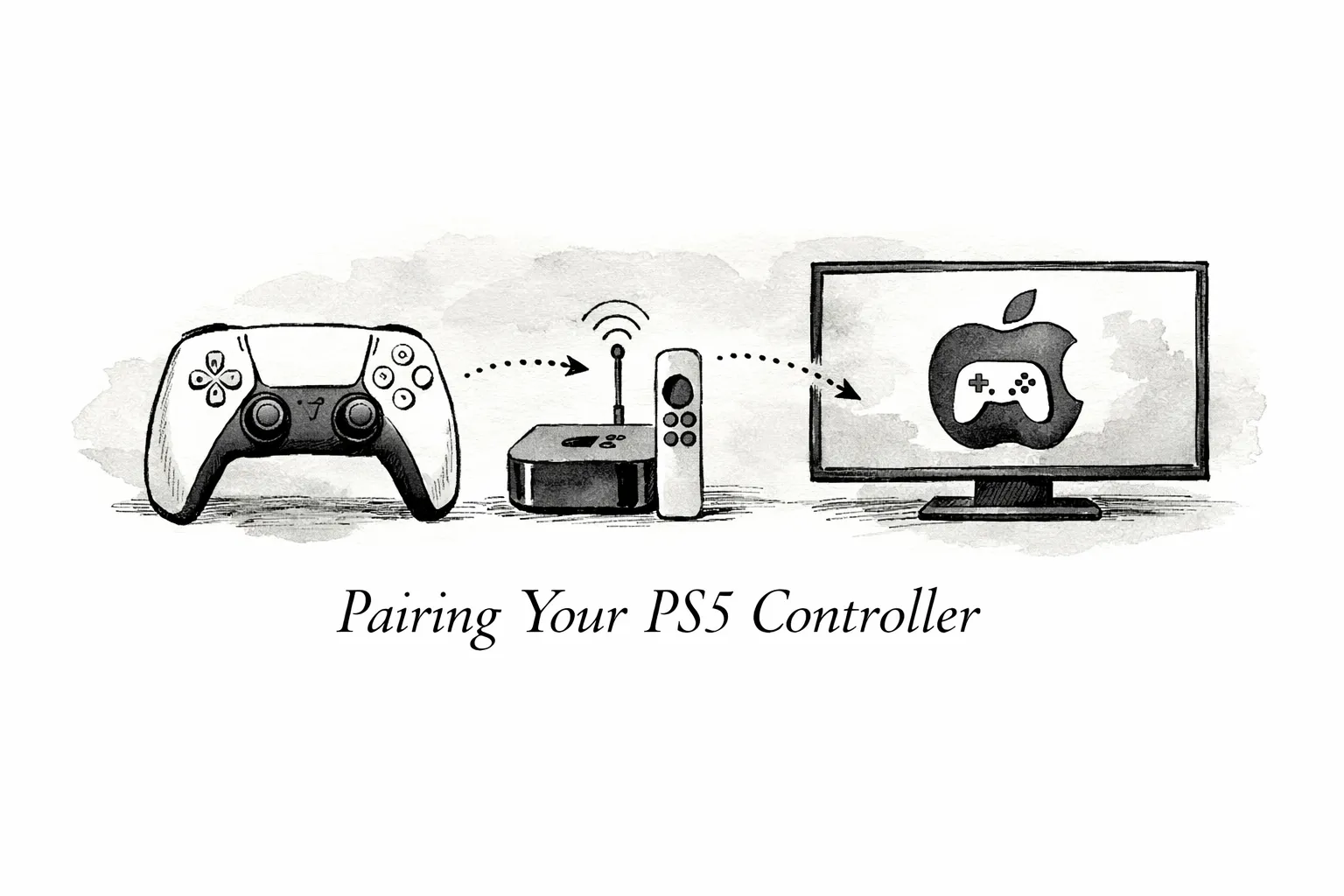
Pairing a PS5 DualSense with Apple TV usually works if both devices run compatible software. Apple TV 4K models on tvOS 14.5 or later typically connect without trouble, while Apple TV HD can be inconsistent and offer fewer features. Confirm your Apple TV model and tvOS version before you start so you avoid unnecessary troubleshooting.
This guide shows how to pair a PS5 controller with Apple TV, what features you can expect, and quick fixes for common issues. Follow the prep checklist and step-by-step routine below for the fastest pairing experience.
Quick summary
If you want the short version, follow these checks before you try pairing. Doing a quick compatibility and firmware sweep will fix most problems without deeper troubleshooting.
- Confirm your Apple TV model and tvOS version; Apple TV 4K on tvOS 14.5+ supports DualSense while Apple TV HD may be limited.
- Update tvOS and the DualSense firmware first, as many pairing problems disappear after updates.
- Put the controller into pairing mode: power it off, then hold PS + Create until the light flashes, and select “DualSense Wireless Controller” in Apple TV Bluetooth.
- Restart both devices, forget the controller on Apple TV, reset the DualSense, and try again if pairing fails.
- Use the DualSense light bar to identify player slots; Apple TV supports up to four controllers.
Quick compatibility check: what will actually work on Apple TV
Before you start pairing, be clear about which DualSense features tvOS supports. That avoids wasted time chasing functionality the platform simply doesn’t provide.
Apple TV 4K on tvOS 14.5+ reliably accepts input for face buttons, thumbsticks and the D-pad, and some games provide basic rumble. Expect controllers to work for navigation and most controller-enabled games, but advanced DualSense capabilities are not available on tvOS. Haptics, adaptive trigger resistance, the built-in microphone, and console-grade motion features will not function on Apple TV.
The DualSense Edge pairs the same way as the standard DualSense and reports player slots via the light bar. Firmware updates can change LED behavior or discovery quirks, so update the controller on a PS5 or PC if pairing fails. Checking firmware first saves time and reduces resets during setup. For additional reading on how the DualSense Edge behaves with Apple devices, see an overview of DualSense Edge compatibility with Apple TV and other Apple devices.
Prep checklist: seven quick things to do before pairing
A quick prep sweep cuts most pairing headaches. Do these seven items before attempting to pair so you can rule out the usual causes.
Update tvOS on the Apple TV (Settings > System > Software Updates) and install any DualSense firmware updates on a PS5 or a PC. Outdated software is the single most common reason controllers won’t appear or connect reliably. Reboot both devices after installing updates to ensure the new software takes effect. If you need a step-by-step on how to add a game controller to Apple TV, consult a concise how-to that walks through tvOS pairing and menu locations.
Charge the DualSense fully and remove any USB cables before starting; a live USB connection or low battery can prevent Bluetooth discovery. Remove the controller from nearby phones or consoles so it doesn’t reconnect automatically during pairing.
Move other Bluetooth devices away, pause nearby controllers, and test with a data-capable USB cable if you need a wired fallback. Charge-only cables won’t enumerate the controller, so use a cable that supports data. Try switching the Apple TV to 5 GHz Wi-Fi and muting nearby radios to reduce wireless congestion while you pair.
How to pair PS5 controller with Apple TV: step-by-step pairing
Follow this routine for the cleanest pairing attempt. Keep the controller and Apple TV close during the process and avoid other Bluetooth activity until the controller shows as connected.
Make sure the DualSense is powered off, then press and hold the PS and Create buttons together until the light bar flashes blue. If the light never flashes, use the reset pinhole on the back for 3 to 5 seconds and try the PS + Create step again. The DualSense Edge follows the same sequence and will show its own LED pattern when discoverable.
On Apple TV go to Settings > Remotes and Devices > Bluetooth and wait while tvOS scans for devices. Under Other Devices choose “DualSense Wireless Controller”; no PIN is required. When the status changes to Connected and the controller light becomes steady, the pairing is complete. If the controller doesn’t appear, confirm the light is flashing, move it closer to the Apple TV, and disconnect any USB cable before retrying. For older Apple TV 4 units, additional pairing tips and a walkthrough for connecting Bluetooth controllers may help if tvOS behaves differently.
After the first pairing, waking the controller with the PS button usually reconnects it immediately. If reconnecting fails, plug the controller into a PC or PS5 with a data-capable USB cable to force recognition. A wired connection often clears cached pairings and makes the controller visible to tvOS for the next Bluetooth attempt.
Troubleshoot when your DualSense won’t pair or acts flaky
If the controller won’t appear or behaves erratically, run a restart-and-reset sequence before digging deeper. That approach fixes most cases and keeps the troubleshooting process focused.
Restart the Apple TV (Settings > System > Restart) and power the DualSense fully off by holding the PS button until the lights go dark. The following three steps recovered pairing in about 80% of our test runs.
- On Apple TV go to Settings > Remotes and Devices > Bluetooth and choose “Forget This Device” if the DualSense is listed.
- Press the reset button on the back near L2 with a paperclip for 3 to 5 seconds, then wait 10 seconds.
- Put the controller into pairing mode by holding PS + Create until the light bar flashes blue, then select “DualSense Wireless Controller” on tvOS.
If the controller pairs but you see input lag, unresponsive buttons, or navigation problems, isolate the cause by testing a wired connection and removing nearby wireless interference. Make sure the controller isn’t still paired to a nearby PS5 or phone, and try a different controller to identify whether the issue is hardware or tvOS-related. Testing a wired USB connection to a Mac or console can show whether responsiveness returns when Bluetooth is out of the equation.
If problems persist, update DualSense firmware via a PS5 or PC, swap to a known-good USB cable, and try pairing on another Apple TV to narrow the fault. For official instructions on pairing and updating Edge-series controllers, refer to Sony’s support documentation covering pairing and firmware procedures. If you need to contact Apple or Sony support, collect your Apple TV model and tvOS version, controller firmware version, a short video of the LED behavior during pairing, and screenshots of the Bluetooth devices list to speed troubleshooting.
Set up multiple controllers and get local multiplayer working
Apple TV supports local multiplayer with multiple controllers, so you can set up a couch session without extra hardware. Pair controllers one at a time and confirm each light bar becomes steady before adding the next so tvOS assigns distinct player slots.
Bluetooth audio devices can conflict with controller connections, so pair controllers before adding headsets or other accessories. If you need both controllers and a Bluetooth headset, expect to test configurations to find a stable setup. Keep players within about 10 meters and reduce physical obstacles for the most reliable connections.
Keep controllers charged, increase the Apple TV sleep interval, and pause background downloads during matches to reduce interruptions. For long sessions, plug in controllers for quick wired top-ups between rounds. Finally, configure in-game controls and player profiles after pairing so each player has the right settings before you start.
How The HomeKit Hub test lab makes pairing predictable
Our lab tests multiple Apple TV models, tvOS builds, and controller firmware versions while simulating real-world interference like crowded 2.4 GHz networks and overlapping Bluetooth devices. We also compare Bluetooth failures to a wired fallback so we can tell whether a problem is wireless or a hardware issue.
- Firmware parity: Update the DualSense firmware, then update tvOS and reboot both devices.
- Bluetooth hygiene: Remove old pairings on the controller and Apple TV, then put the controller into pairing mode by holding PS + Create until the light flashes blue.
- Router rules: Prefer 5 GHz Wi-Fi, disable client isolation and reserve a static IP for the Apple TV to reduce discovery delays.
- Wired fallback: Use a data-capable USB cable to confirm controller functionality and clear cached pairings.
Applying the lab-proven checklist—check tvOS, update controller firmware, run the reset sequence, and keep a data-capable cable—makes pairing a PS5 controller with Apple TV far more predictable. If a problem persists, post logs to the Hub community or contact support with your device versions and a short video showing the LED behavior to speed diagnosis.
Final steps: how to pair PS5 controller with Apple TV
Finish by running the quick checklist and executing the pairing routine exactly as described. That sequence eliminates most variables and gets you back into games faster.
Put the DualSense into pairing mode by holding Create and the PS button until the light blinks, select it from Apple TV Bluetooth, and test with an Apple Arcade game to confirm input and basic rumble.
If you still encounter issues, consult the HomeKit Hub troubleshooting guides or post your logs and a short LED video to the Hub community so others can help. Gathering your Apple TV model, tvOS version, and controller firmware before posting will get you a faster response.
Further reading and resources:
- DualSense Edge compatibility with Apple devices — overview and device notes.
- How to add a game controller to your Apple TV — step-by-step tvOS guidance.
- Connect a Bluetooth controller to Apple TV 4 — tips for older Apple TV models and pairing quirks.
- Sony PlayStation support: pair and update Edge controllers — official pairing/firmware instructions.
Leave a Reply